Keyboard vs Touch Controls in Browser Games
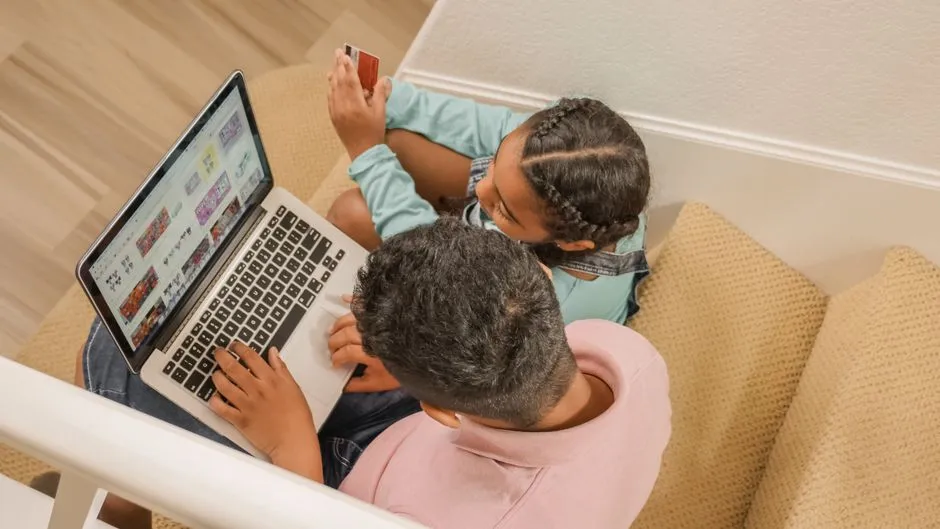
Keyboard and touch ask the body to solve different problems
A keyboard offers physical keys with tactile boundaries. Touch controls appear on glass and may use taps, holds, swipes, or virtual sticks. The same jump-and-move game can feel precise on one input and slippery on another because feedback, finger position, screen size, and visibility change.
Neither input is automatically easier. The best design matches the actions and gives alternatives where possible.
Keyboard controls provide stable landmarks
Players can rest fingers on known keys and press several at once. Arrow keys, WASD, space, and nearby action keys are common, but familiarity is not universal. Left-handed players, alternative keyboards, switch users, and people using voice or keyboard emulation may need remapping.
W3C accessibility guidance says web functionality should be available through a keyboard and that focus should not become trapped. In a browser game, Escape, Tab, or another documented control should allow players to leave or reach menus without closing the entire browser by emergency procedure.
Touch controls share space with the game
On-screen buttons occupy visual area and disappear beneath fingers. Small targets, edge gestures, and simultaneous actions can be difficult. Designers can help with large controls, spacing, movable layouts, forgiving hit areas, and alternatives to complex gestures.
W3C also recommends alternatives for input requiring fine dexterity and interfaces designed to reduce accidental activation. Those principles matter directly when a virtual jump button is roughly the size of a lentil.
Swipes are not the same as buttons
A swipe encodes direction and distance but takes time and movement. A tap is quicker but carries less information. A virtual stick allows continuous direction, yet the thumb may drift because no physical edge confirms center.
Games should explain gesture timing and offer practice before failure matters. Avoid cleaning the screen mid-session unless you enjoy issuing a sudden accidental command to every object.
Device orientation changes layout
Landscape mode gives wide side controls; portrait mode offers height but narrow movement space. Browser bars, notches, zoom, and full-screen behavior affect available area. A game designed for one orientation may become cramped in another.
The HTML5 game guide explains how pointer, touch, keyboard, and gamepad APIs reach the game.
Compare controls with one small test
On each device, try moving slowly, changing direction, holding two actions, opening pause, and recovering after the pointer leaves the game area. Check whether keys scroll the web page, touch gestures trigger browser navigation, or focus disappears after an ad.
For movement-heavy platform games, repeat the same jump several times and compare consistency rather than one lucky run.
Accessibility means more than preference
Remapping, alternate input, hold-versus-toggle choices, adjustable sensitivity, larger targets, and pause options can determine whether someone can play at all. Review accessible browser-game settings and ask the player what works.
Choose the input that lets actions feel intentional. A difficult level should test the game's mechanic, not whether a thumb can remember where an invisible button was while also covering the hazard.