Browser Games on a Shared Computer: A Safety Guide
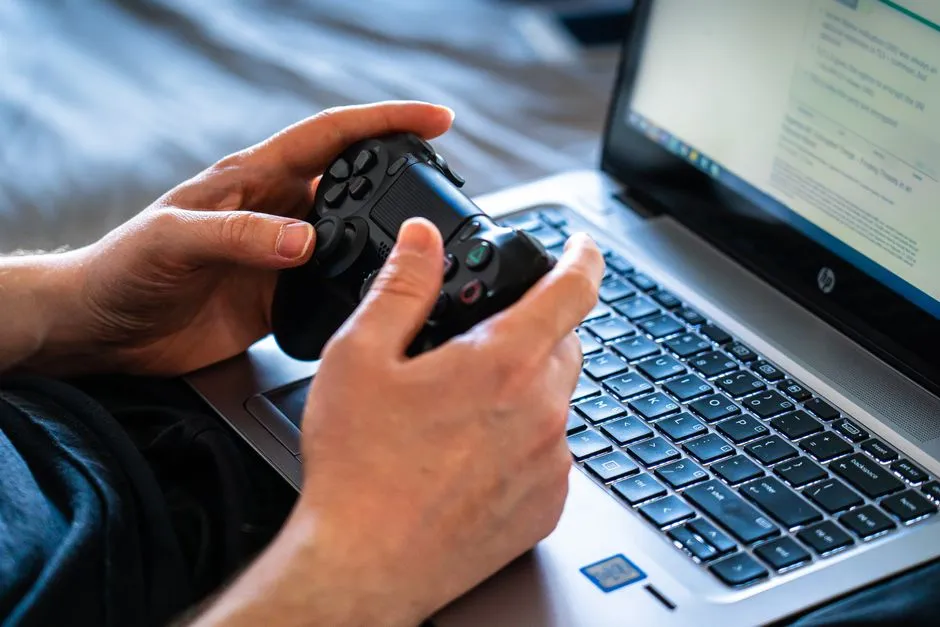
- Shared-computer gaming needs separate people and separate data
- Keep adult accounts out of child sessions
- Check the address and permissions
- Understand local saves
- Teach safe links and downloads
- End the session cleanly
- Protect privacy between family members too
- Make a compact household checklist
- Review the guest path
Shared-computer gaming needs separate people and separate data
On a shared computer, one person's game can inherit another person's signed-in browser, saved payment, email, history, permissions, and cloud account. Use separate operating-system or browser profiles where available, protected appropriately for each user.
A profile is organization and access control, not magic armor. Families still need current game, browser, and device settings.
Keep adult accounts out of child sessions
Sign out of stores, email, social media, and payment services in the child's profile. Do not save card details or adult passwords there. Use official purchase-approval controls and a strong adult credential the child does not know.
The ads and purchases guide explains why family rules should be backed by technical barriers.
Check the address and permissions
Bookmark the reviewed official game page so players do not search through ads or look-alike sites every session. Inspect requests for notifications, location, camera, microphone, downloads, clipboard, or full-screen access. Deny permissions that play does not need.
Review existing site permissions periodically. A one-time click can persist after everyone forgets why it happened.
Understand local saves
Separate profiles often create separate browser storage. This protects progress from accidental overlap but means a save may not appear in another profile. Clearing site data can erase local game state.
Read where browser saves live before maintenance. Use official account or export features only after reviewing privacy, age, and consent requirements.
Teach safe links and downloads
Children should ask before following ads, opening new tabs, installing extensions, downloading files, or entering personal information. A browser game usually does not need a mystery “launcher” from an unrelated pop-up.
Keep browser protections enabled and use official updates. On a school or work device, follow administrator rules; do not use games to test whether restrictions can be bypassed.
End the session cleanly
Save through the game's documented method, sign out of accounts that should not remain open, close the game, and check that no download or extra window remains. Do not erase all browsing data after every session unless local saves and required settings have been backed up.
For young players, an adult should review the session and any new permission, message, friend request, or charge. Use the browser-game selection guide before adding another title.
Protect privacy between family members too
Separate profiles reduce accidental exposure of another person's email, documents, searches, and autofill. Respect each user's data rather than treating “shared computer” as “all information is communal.”
Do not let children impersonate an adult's age or account to reach a game. Age and consent screens exist for reasons that a family should review honestly.
Make a compact household checklist
Before play: correct profile, reviewed bookmark, no adult payment, expected permissions. After play: saved safely, signed out where needed, no unknown downloads, extra tabs closed.
The system should make the safe path ordinary. If every session requires remembering fifteen warnings, simplify the games or device setup. Shared computers already contain enough plots without a browser game borrowing everyone's identity for a side quest.
Review the guest path
If visitors play, use a guest or limited profile that does not expose household accounts or files. Remove it according to official device instructions after confirming nobody's needed progress lives only there.